
Lens AI & Reverse Image Search
HEYOSProductivity
4.332.00 Reviews
- Version
- 1.3.9
- Installs
- 10.00K
- Age Rating
- Everyone
Screenshots
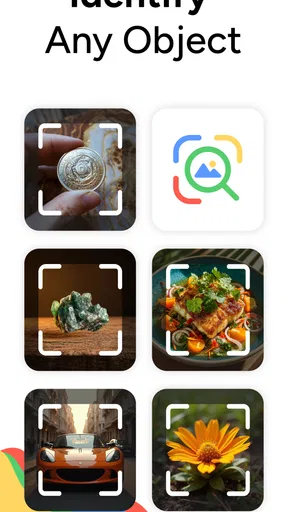
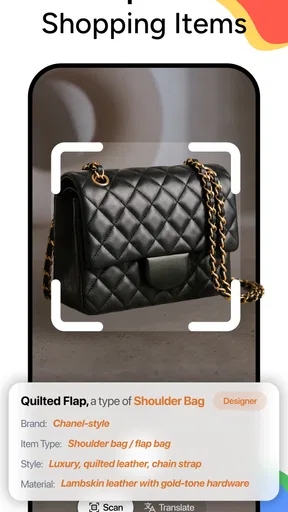
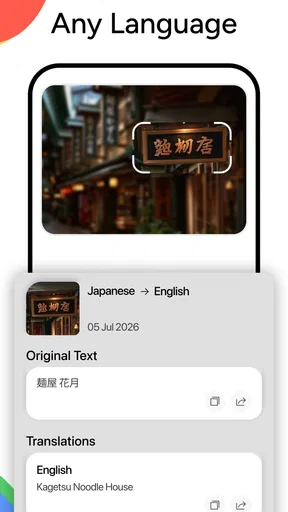
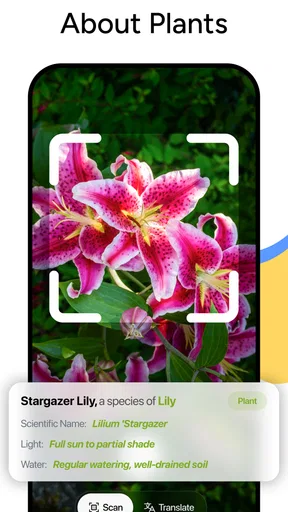
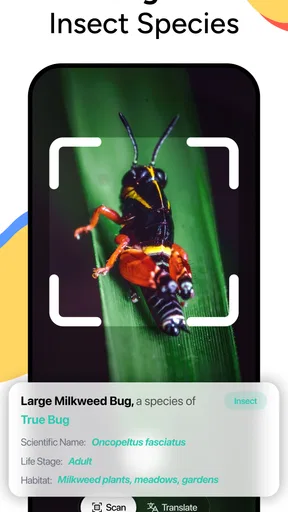
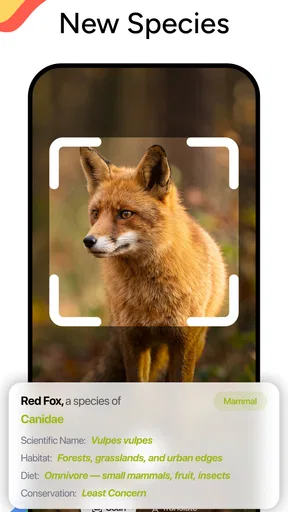
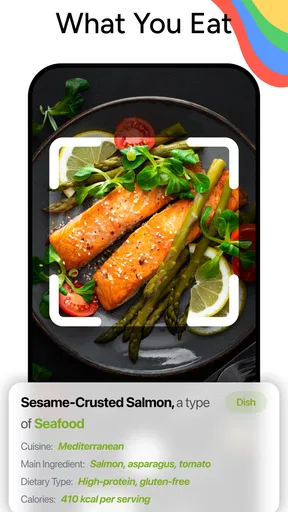
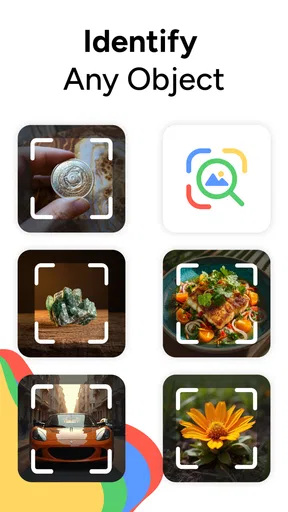
Our Review of Lens AI & Reverse Image Search
 Analysis by Appyee
Lens AI & Reverse Image Search is a productivity app from HEYOS that I found most useful when I needed to identify, understand, or trace a picture without remembering the right words to type. Its focus is simple: use a photo as the starting point for a search. That sounds narrow, but it changes the way I approach visual information, especially when an object, product, plant, document, or place is easier to show than describe.
I reviewed it as an everyday tool rather than as a novelty. The important question is not whether image search feels impressive for a few minutes, but whether it helps when I am in a hurry, working from a screenshot, or trying to search with limited text input. My overall impression is positive, although the app works best when I treat its results as clues to investigate rather than unquestionable answers. It is free to install, rated for Everyone, and available for devices running Android 8.0 or later. Optional purchases range from $6.99 to $49.99 per item, so it is worth checking the available limits before making it part of a regular workflow.
How clearly the app handles visual searching
The strongest part of the experience is the basic idea behind the interface. Instead of forcing me to invent a precise search phrase, I can begin with an image. That is valuable when I have a screenshot containing an unfamiliar item, a photograph of clothing I want to find, or a picture whose useful details are difficult to describe. The app’s short store label, “Lens AI,” is brief, but the practical function is broader: it turns a visual question into a search task.
In my experience, readability matters more here than decorative design. A reverse-image tool should make the main action obvious, because the user may already be dealing with a confusing picture. The clearest workflow is the one that lets me choose an existing image or use a new one without making me hunt through unrelated controls. When the starting point is a screenshot, every extra step feels more noticeable than it would in a general productivity app.
I also appreciate the difference between searching an entire photograph and searching one important part of it. A busy image can contain several possible subjects: a person wearing a jacket, a logo in the background, a product on a table, and text on a label. The useful habit is to crop before searching whenever the subject is not visually dominant. That small decision can improve the relevance of the results more than repeatedly changing the wording of a text query.
For a person who reads comfortably on a phone, the app is approachable because the visual task explains itself. I do not need to learn a complicated filing system or build a database of images. I select the picture, decide what part matters, and review what comes back. That simplicity makes it easier to recommend to a friend who wants occasional help rather than a full research suite.
At the same time, image search is not automatically self-explanatory for everyone. A result that looks visually similar may not be the exact object in the original picture. I found it important to read surrounding labels and compare several results instead of stopping at the first attractive match. For shopping research, that means checking the seller and product details separately. For identification, it means treating the suggested name as a starting point and looking for confirming evidence.
Navigation that works best with a prepared image
One practical strength is that the app fits naturally into a screenshot-based routine. If I see a product in a video, a social post, or a chat and cannot copy its name, saving a screenshot gives me something concrete to work with. I can then crop away interface elements, captions, and unrelated people before running the search. This is faster than trying to describe color, shape, brand, and model in a long sentence.
That workflow also helps people who find extended typing tiring or error-prone. A picture can carry details that would take several attempts to express in text. It is not a replacement for text search in every situation, but it reduces the need to guess the exact vocabulary used by a manufacturer or website.
Another useful approach is to keep the original image untouched and create a separate crop for searching. The original preserves context, while the crop gives the search a cleaner subject. I would especially use this with receipts, packaging, room scenes, and screenshots where a small logo or object is the actual target. This is a simple technique, but it prevents a common mistake: using a full image when the app would have a better chance with one clear visual subject.
The app is listed as version 1.3.9, and I found that detail relevant mainly because small interface changes can affect people who rely on a familiar sequence of actions. Anyone who uses the app frequently should pay attention after updates and allow a little time to re-learn where the image-selection and result-review controls are located. That is not a criticism of this particular release; it is simply a sensible habit for a tool used in time-sensitive situations.
Motor and sensory considerations in real use
Image-based input can be helpful for people who have difficulty typing on a small keyboard, use speech input, or prefer pointing and selecting over composing search phrases. The app gives the image the main role, so the user can avoid describing an object with exact spelling. For someone with limited dexterity, choosing a saved photo may be less demanding than entering a detailed query, especially when the image already exists in the phone’s gallery.
There are still physical steps involved. Selecting a small thumbnail, cropping accurately, and choosing the relevant part of a crowded image require control and visual precision. A person with tremor or limited reach may find a two-stage process easier: first save a clear photo, then ask someone or use another tool to prepare the crop if necessary. In that situation, the app remains useful, but it should not be presented as effortless for every motor ability.
For low-vision users, the experience depends heavily on the clarity of the source image and the legibility of the result screen. A blurry photograph gives the search less to work with, while a busy background can make the returned matches difficult to interpret. I would recommend taking a close, well-lit photo when possible and using high-contrast subjects rather than relying on a distant scene. Those choices improve the input before the app has any chance to help.
People who are sensitive to visual clutter may prefer a deliberate, one-image-at-a-time routine. I found it easier to judge results when I avoided rapidly switching between many similar pictures. A single clear question produces a calmer review process: identify the object, compare the matches, then decide whether another crop is necessary. This is also useful for anyone who becomes overwhelmed by too many possible interpretations.
For blind users, an image-search app should be considered alongside a screen reader and other tools that explain visual content through text or speech. I would not assume that reverse search alone provides a complete description of an image. Its value is strongest when the user already has a usable way to select the picture and inspect the returned information. When those pieces are in place, the app can support discovery; when they are not, a dedicated image-description service may be a better first choice.
Where it helps when normal search is inconvenient
My favorite everyday scenario is shopping from a screenshot. Imagine seeing a lamp, backpack, or pair of shoes in a video and wanting to find the same style later. Instead of pausing to write down a vague description, I save the frame, crop out the item, and search from that image. The results may lead to the original product, visually similar alternatives, or useful words for a second text search. The important benefit is not guaranteed identification; it is getting past the blank page of not knowing what to call the thing.
A second scenario involves household items. When I find an unfamiliar cable, connector, tool, or appliance part, a close photo can help me discover likely names and related examples. I would still verify compatibility using measurements and official product information. The app can shorten the discovery stage, but it should not be the only basis for buying a replacement or handling anything safety-sensitive.
It can also help with visual references in study and work. A screenshot of a chart, symbol, artwork, or diagram may reveal related images and terminology that I would not have found through a generic phrase. For students, this can make research more accessible when the first challenge is recognizing the subject. For workers, it can help organize an informal investigation from photographs, although confidential material should be handled carefully and only in ways permitted by the relevant workplace or institution.
Travel is another reasonable use. A photo of a sign, building detail, dish, or landmark can provide search leads when I do not know the local spelling. I would not rely on it as a substitute for translation or navigation in an urgent situation, but it can make casual exploration easier. The same principle applies to hobbies: identifying a plant-like image, finding a craft reference, or locating a visually similar design can all begin with a picture rather than a carefully written query.
How it compares with ordinary text search and other tools
Text search remains better when I know the exact model number, a distinctive phrase, or a technical specification. If I already have a serial code or a product name, typing it is usually more direct and produces results that are easier to verify. Lens AI & Reverse Image Search earns its place when the words are missing, uncertain, or inconvenient to enter.
It also differs from a standard gallery app. A gallery helps me store and organize photographs; this tool gives those photographs an investigative purpose. It is not a replacement for a visual note-taking system, a document scanner, or a dedicated translation app. I see it as the bridge between “I have this image” and “I need to learn something from it.”
Compared with a general web search engine’s image feature, a focused app can feel more convenient because the starting point is always the picture. The trade-off is that I have less control than I would with a carefully constructed search query. For difficult subjects, I often get better results by using the app to discover descriptive terms and then switching to text search for confirmation. That two-step method is more reliable than expecting one image to answer every question.
Remaining barriers and sensible precautions
The biggest limitation is interpretation. Similarity is not proof. A visual match can be a different brand, an older version, a decorative copy, or simply an object with the same shape. I would never use a result by itself to identify medication, electrical components, allergens, legal documents, or anything where a wrong guess could cause harm. In those cases, the app may assist with research, but a qualified source must make the final call.
Privacy also deserves a deliberate approach. Before searching, I would remove faces, addresses, account details, school information, or private conversations from screenshots whenever they are irrelevant to the task. Cropping is useful not only for accuracy but also for reducing unnecessary personal context in the image. This habit makes the workflow safer and usually makes the search more focused at the same time.
Cost is another point to consider. The app is free, which makes trying it low-risk, but in-app purchases are available at prices from $6.99 to $49.99 per item. I would begin with occasional searches and only consider paying if the app consistently saves me time. Someone who needs unlimited, highly controlled research may prefer a service with a clearer long-term pricing model or a desktop workflow.
The audience is broad because the content rating is Everyone, but that does not mean every visual context is equally suitable. Children may use it for harmless curiosity, while adults should still guide them when a result involves shopping, unfamiliar websites, or sensitive images. Families and educators can make the tool more useful by teaching the difference between a search suggestion and a verified fact.
With over ten thousand installs and an average rating of 4.3 from around one point six thousand ratings, the app has enough public use to suggest that its central idea resonates with people. I would not treat those figures as a guarantee for a particular phone or ability, though. The real test is whether its image-first workflow fits the way you already save screenshots, take photos, and investigate unfamiliar things.
My inclusive verdict on Lens AI & Reverse Image Search
I recommend Lens AI & Reverse Image Search to people who regularly encounter objects, products, or visual references they cannot easily name. Its best quality is practical rather than flashy: it gives me a way to begin searching when language is the obstacle. That can support users who type slowly, people working from screenshots, travelers facing unfamiliar signs, and anyone who thinks more easily in pictures than in keywords.
I would skip it if my searches are mostly based on exact text, technical codes, or information that must be authoritative on the first attempt. I would also choose a dedicated accessibility or image-description tool when the main need is spoken scene understanding rather than finding visually related results. The app can contribute to an inclusive workflow, but it does not remove the need for readable controls, suitable device settings, careful cropping, and an independent way to verify important answers.
My practical recommendation is to use it in three passes: prepare a clean image, search the most relevant crop, and verify the result through a reliable source. That approach exposes its real strength while limiting its main weakness. HEYOS has made a focused productivity tool for visual discovery, and I found it most valuable as a bridge from uncertainty to better questions. For occasional image-based research, the free entry point makes it easy to try; for demanding or sensitive work, I would use it as one helpful step rather than the entire solution.
Verdict
Strengths of Lens AI & Reverse Image Search
- Searches images using multiple reverse-search engines.
- Useful for identifying products, places, artwork, and unknown objects.
- Supports image uploads directly from the device gallery.
- Can help find higher-resolution or visually similar images.
- Simple interface makes quick searches easy for most users.
Limitations of Lens AI & Reverse Image Search
- Search accuracy depends heavily on image quality and available web results.
- Some advanced features may require a subscription or in-app purchase.
- Results can vary significantly between different search engines.
- Uploaded images may raise privacy concerns for sensitive content.
- Ads or usage limits may interrupt frequent searches.
Other Releases by HEYOS
View All
AI Baby Generator - TinyFaces
Parenting4.4
Similar Picks in This Category
View All
Google Calendar
Google LLC4.6

Google Drive
Google LLC4.3

Google Assistant
Google LLC3.9

Microsoft OneDrive
Microsoft Corporation4.6

Samsung Calendar
Samsung Electronics Co., Ltd.4.1

Microsoft OneNote: Save Notes
Microsoft Corporation4.6
Frequently Asked Questions
What is Lens AI & Reverse Image Search used for?
Lens AI & Reverse Image Search helps you identify objects, products, plants, animals, places, and other visual content from a photo. You can take a picture with your camera or select an image from your gallery, then use the search results to find visually similar images, product information, websites, and possible explanations. Results can vary depending on image quality and subject recognition.
How accurate are the results from Lens AI & Reverse Image Search?
The app can be useful for recognizing common objects and finding similar images, but its results should not be treated as completely reliable. Accuracy depends on lighting, focus, image angle, background distractions, and how clearly the subject appears. For plants, animals, medical concerns, or valuable products, it is best to verify the information through trusted sources instead of relying only on the app.
Does Lens AI & Reverse Image Search require an internet connection?
Yes, most reverse image searches and AI-based recognition features require an active internet connection because the image is processed through online search or cloud-based services. Without Wi-Fi or mobile data, you may still be able to choose or prepare an image, but search results and detailed analysis may not load. Mobile data usage can also increase when uploading high-resolution photos.
Is my uploaded image private and secure?
Before using the app, review its privacy policy and the permissions requested on your Android or iOS device. Reverse image search normally involves sending an image to an online service for processing, so you should avoid uploading confidential documents, personal identification, private conversations, or sensitive photographs. Also check whether the app stores images, shares data with third parties, or allows deletion of search history.
Is Lens AI & Reverse Image Search free to download and use?
The app may be available to download at no initial cost, but some features can be limited by advertisements, daily search restrictions, subscriptions, or in-app purchases. Pricing and available tools may differ between Android and iOS versions. Before confirming a trial or subscription, carefully read the payment terms, renewal conditions, and cancellation instructions shown in the relevant app store.
